Photo Gallery: Album & Vault
- 4.3
- Rating
- 50.00K
- Installs
- Free
- Price

 Analysis by App-foxy
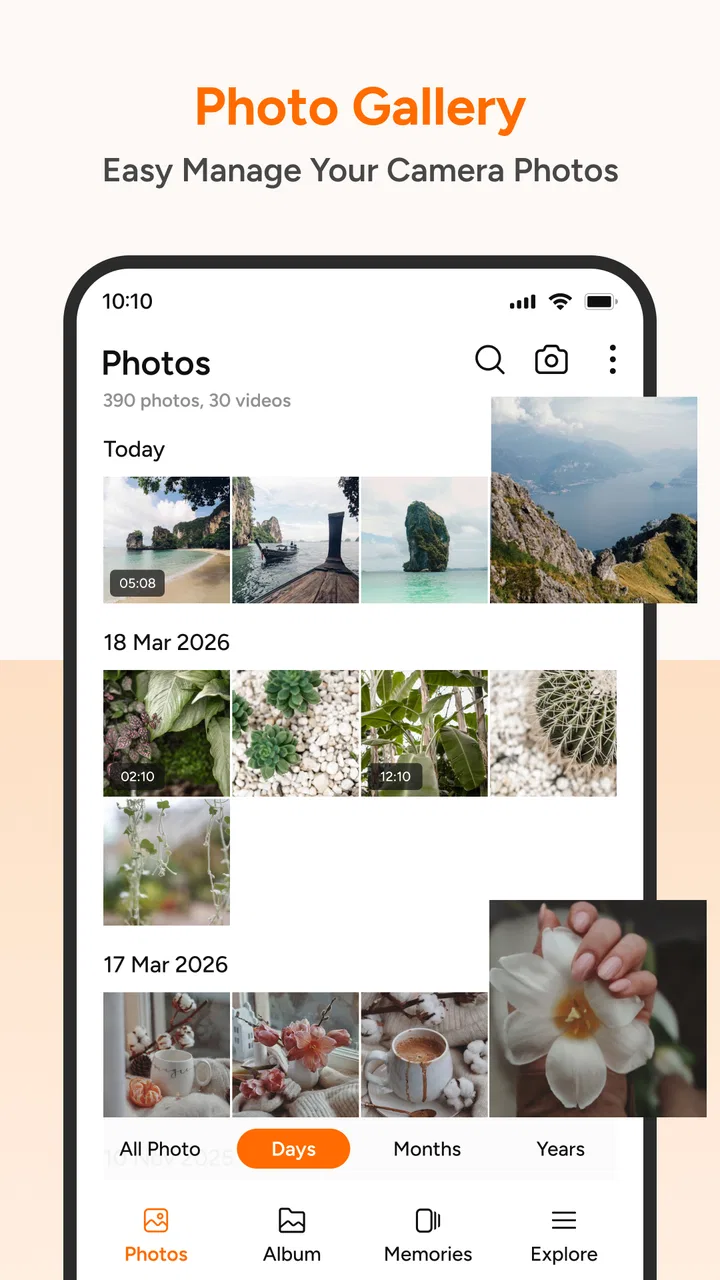
I spend more time in my photo library than I expect to, and that makes a gallery app’s small design choices matter. Photo Gallery: Album & Vault is a free photography app from Foxxy Studios that focuses on making photos and videos easier to browse, arrange, and manage. I found its appeal less in flashy editing tools and more in the everyday job of turning a crowded camera roll into something I can understand quickly.
That focus makes it worth considering for people who want a straightforward place to view personal media. It is available to everyone by age rating, runs on operating systems from version 11 onward, and its current release is 0.0.9. The app has reached over 50 thousand installs and holds a 4.3 average from around 500 ratings, which suggests a reasonable early reception without making it feel like a mature, feature-heavy platform.
How the gallery feels to read and navigate
My first impression is that the app’s usefulness depends on visual organization rather than complicated controls. A gallery should let me recognize images at a glance, move between photos and videos without confusion, and keep the main actions close to where I expect them. Photo Gallery: Album & Vault is aimed at that kind of direct interaction, so it suits someone who would rather see a familiar media grid than learn a large editing suite.
You May Also Like

 AccuWeather: Weather Radar
AccuWeather Review: A Quick, Clear Forecast for Everyday Decisions
For everyday plans, the best forecast is the one you can understand quickly. AccuWeather makes rain timing, radar, and local conditions easy to act on, with a few trade-offs.

 Hill Climb Racing
Why Hill Climb Racing Still Turns Crashes Into One More Run
A tiny car, a bumpy hill and one more upgrade: Hill Climb Racing keeps resurfacing because its simple chaos makes every near-miss feel personal.

 AliExpress - Shopping App
AliExpress Makes Global Shopping Feel Personal, but Shoppers Bear the Risk
AliExpress turns a global marketplace into a pocket-sized discovery engine. Its reach is useful, its shopping loop compelling, and its trade-offs easy to miss.

 Lords Mobile: Kingdom Wars
Lords Mobile Is a Kingdom-Building Routine, Not a Quick Match
A case-by-case verdict on the building, battles, device demands, and social commitments that make Lords Mobile rewarding for some players and exhausting for others.

 PDF Scanner app - TapScanner
TapScanner Makes Paperwork Easier to Capture, Check, and Share
TapScanner makes scanning with a phone feel less like a rescue operation and more like a dependable step in getting work done. Its capture tools are useful, though not flawless.

 Block Blast!
 Shows How Much a Puzzle Game Can Leave Out
A quiet grid game shows why puzzle players increasingly value instant clarity, repeatable skill and low-pressure play—and where the genre still needs to catch up.
More From Our News Desk
View All News


The emphasis on high-quality HD viewing is important here. A gallery can become frustrating when thumbnails are too soft to distinguish similar pictures, especially when I am choosing between several shots from the same moment. Clear previews make it easier to identify the right image before opening it, deleting it, or placing it into an album. That is a practical benefit for anyone with many near-duplicate photos.
I also like the idea of separating organization from editing. Many phone users do not need filters, retouching controls, or social templates every time they open their library. They simply want to find a receipt, send a recent picture, check a downloaded video, or collect family images in one place. This app’s photography-gallery identity keeps those tasks at the center instead of making them compete with creative tools.
For readers who depend on readable interfaces, the most important test is not whether a screen looks modern; it is whether the visual hierarchy remains understandable after repeated use. A gallery that groups media consistently reduces the amount of searching I have to do. Large image previews can also help users with limited vision, although the experience will still depend on the phone’s own display settings and the app’s exact layout on a particular device.
I would approach navigation with a simple personal workflow. I first use the main gallery view to scan recent media, then create or use albums for subjects I revisit often. I keep work-related pictures, travel images, and family material separated rather than trying to maintain one enormous stream. This reduces visual overload and makes the app more useful over time than treating it only as a viewer.
Why the simple approach helps
The strongest design choice for many users is restraint. A conventional phone gallery may be tightly connected to the device’s default photo system, cloud suggestions, or manufacturer-specific categories. Those integrations can be helpful, but they can also add menus and automatic groupings that do not match the way I think about my pictures. Photo Gallery: Album & Vault is more attractive when I want a dedicated, less distracting place to manage media.
That simplicity has a trade-off. People who expect advanced search, automatic recognition, detailed editing, or deep cloud-library integration may find a focused gallery less capable than a large ecosystem app. I would not choose it as my only photography tool if my main goal were professional editing or sophisticated photo discovery. I see it as a practical organizer and viewer first.
One useful habit is to decide on album names before importing a large amount of personal media into any gallery. Short, distinct labels are easier to scan than clever names that I may forget later. I also avoid creating an album for every tiny event; otherwise the organization system becomes another source of clutter. The app’s value grows when the structure stays small enough to remember.
Using it with different abilities and everyday situations
I look at this section through the everyday tasks that can make a gallery easier—or harder—to live with: finding one picture in a busy moment, browsing comfortably with different display settings, and avoiding accidental selections when touch is difficult. I’d start with a small, familiar set of images and check which device accessibility tools make those actions feel natural. That practical trial leads into how the app fits alongside the gallery and photo services people already use.
Readability for low-vision and attention-limited use
Photo browsing is a visual activity, but that does not mean every user experiences it in the same way. Someone with reduced vision may need to rely on larger thumbnails, stronger device contrast, display magnification, or spoken assistance. Someone with attention difficulties may benefit from a limited number of visible choices rather than a screen full of categories and promotional panels.
In that context, a gallery centered on images can be easier to understand than a multipurpose photo app. I can focus on the media itself instead of interpreting editing icons and decorative controls. The practical question is whether labels and actions remain clear when the phone’s text size, magnification, or screen reader settings are changed. I would test those settings with a small selection of non-sensitive photos before making the app part of a daily routine.
There is also a difference between readable thumbnails and readable controls. A sharp image preview helps me identify content, but it does not automatically make buttons understandable. Users who need larger touch targets or spoken labels should pay attention to whether the app’s controls remain easy to locate with their preferred device settings. This is one area where the phone’s accessibility tools can make a major difference, but they cannot fix every unclear label or tightly packed control.
Motor comfort and one-handed browsing
Gallery tasks often happen while I am standing, carrying something, or using a phone with one hand. That makes accidental taps and awkward reach more than minor annoyances. The best workflow is one where I can open a picture, return to the grid, and choose an album without needing precise repeated gestures.
For users with tremors, limited dexterity, or fatigue, I would recommend slowing down before any destructive action. Organizing media in small batches is safer than trying to sort an entire camera roll in one session. I would also avoid making decisions while rushing through a crowded grid; similar thumbnails can make a mistaken selection easy, particularly when several pictures were taken seconds apart.
A useful technique is to review one subject at a time. For example, I might gather images from a recent appointment or family gathering, confirm each full-size preview, and only then place the selected files into an album. This reduces the number of rapid taps and gives me a chance to catch mistakes. It is not a special feature claim; it is a safer way to use a visual organizer.
People who have difficulty with touch gestures may prefer using the phone’s built-in switch access, voice control, or external input options where supported by their device. I would not assume every gallery action will be equally convenient through those tools. The app is most promising for users who want a calm browsing routine, but anyone relying heavily on alternative input should test the exact actions they need before committing to it.
Situational access beyond the home
Accessibility also changes with surroundings. In bright sunlight, reflections can make thumbnails and controls harder to distinguish. In a dark room, a bright gallery can cause visual strain. On a moving bus, precise taps become less reliable. A useful gallery should therefore be judged not only at a desk but also in the messy situations where people actually check their photos.
I find a focused gallery most useful in quick, low-pressure moments: showing a picture to someone, locating a document image, or checking whether a video is the correct one before sharing it. The HD viewing emphasis helps when small visual details matter, but clarity alone does not solve glare, screen brightness, or shaky hands. Device-level display adjustments remain part of the experience.
There is a privacy angle to situational access as well. The word “Vault” in the app’s name may attract users who want a more private place for personal media. I would be careful not to assume that the name alone explains the exact protection offered. Before storing sensitive images, I would read the app’s own on-device prompts and settings closely, check how access works, and confirm that the behavior matches my expectations. A private-looking label should never replace understanding the actual controls.
The same caution applies when handing a phone to another person. If I am showing one photo, I prefer opening that image first rather than passing over a full gallery and relying on quick reactions. This is especially important for shared family devices or phones used around children. The everyone age rating makes the app broadly approachable, but the media a person stores inside it can still be private or unsuitable for casual browsing.
Where it fits beside familiar alternatives
The usual alternative is the phone’s built-in gallery. That option often wins on convenience because it is already installed and may connect naturally with the camera, screenshots, downloads, and device folders. If I need automatic backups, extensive search, or close integration with a cloud account, a manufacturer gallery or a major photo service may be the better choice.
Photo Gallery: Album & Vault makes more sense when I want a separate photography app with a clear organizing purpose. It can be a good middle ground between a basic file browser and a feature-packed photo platform. I would choose it for manual album management and direct browsing, especially if the default gallery feels crowded or tied to services I do not use.
It is also different from a file manager. A file manager is better when I need to work with folders, filenames, transfers, or documents beyond photos and videos. A gallery is better when visual recognition is faster than reading filenames. That distinction matters for people with low vision or cognitive fatigue: sometimes a clear image grid is easier than a long list, while in other cases descriptive filenames and folder paths are more dependable.
Practical barriers and costs to consider
The app is free to install, but it includes in-app purchases priced from around ten dollars to around fifty dollars per item. That does not automatically make it poor value, but it does mean I would inspect the purchase screens carefully before confirming anything. A user who only wants a basic gallery should understand which parts are available without payment and which optional items may affect the long-term experience.
That pricing range may be difficult for people with limited budgets, particularly if they are comparing the app with a gallery already included on their phone. The free starting point lowers the barrier to trying it, while the possible purchase cost raises the importance of testing the everyday workflow first. I would not pay for extras until I had confirmed that the app handles my most important tasks comfortably.
The relatively early version number also shapes my expectations. I would give a newer product room to improve, but I would keep a separate backup of important photos rather than treating any gallery app as the sole place where irreplaceable memories live. This is good practice regardless of the app, especially when the library includes medical documents, identification images, or family records.
Another barrier is cognitive organization. Albums can reduce clutter, but setting them up requires decisions. Users who find categorization tiring may prefer the automatic sorting of a larger photo service. Conversely, users who dislike automatic grouping may appreciate having more say over how their media is arranged. The right choice depends on whether manual control feels reassuring or burdensome.
Storage and performance can also affect comfort, particularly on older devices that meet the minimum operating-system requirement but have limited free space or memory. I would begin with a modest library and observe how quickly previews appear, how easy it is to return to the main view, and whether long browsing sessions remain comfortable. That test is more useful than assuming every phone will feel identical.
Who I would recommend it to
I would recommend Photo Gallery: Album & Vault to someone who wants a dedicated way to view and arrange photos and videos without turning every visit into an editing project. It is especially suitable for people who think visually, prefer manual album structure, and want a simple routine for separating personal media from the rest of the phone.
It may also suit a family member who finds a feature-heavy photo service confusing. I would set up a few meaningful albums, adjust the phone’s display and accessibility settings, and practice opening, viewing, and returning before adding a large collection. That gives the user a predictable path rather than presenting an empty app with no structure.
I would skip it, or at least compare it carefully with alternatives, if I needed professional editing, automatic cloud organization, advanced search, or a clearly established privacy system for highly sensitive material. I would also hesitate if the purchase options felt unclear or if the interface did not work well with my preferred accessibility controls. A free download is useful for testing, not a reason to ignore those requirements.
After using it as a gallery rather than expecting it to be an all-purpose photo platform, my view is positive but measured. Foxxy Studios has positioned this app around a sensible everyday need: seeing, organizing, and managing personal photos and videos with less distraction. Its strongest advantage is that focused purpose, while its main risks are the limits of a young, specialized product and the need to examine paid options and privacy-related behavior carefully.
My inclusive verdict: this is a worthwhile free gallery to try when readable visual browsing and manual organization matter more than advanced automation. I would introduce it gradually, keep backups of important media, and test it with the display or input settings each person depends on. For a user who values a calm, image-first library, it can be a comfortable fit; for someone needing deep cloud tools, extensive editing, or fully predictable assistive navigation, the phone’s established gallery or a larger photo service may still be the safer choice.
FAQs for Photo Gallery: Album & Vault
01What is Photo Gallery: Album & Vault used for?
Photo Gallery: Album & Vault is designed to help you browse, organize, and protect photos and videos stored on your device. It typically combines a standard gallery with tools for creating albums, viewing media by date or folder, and placing private files inside a protected vault. It can be useful for users who want a cleaner alternative to the default gallery app and a separate space for sensitive content.
02Does Photo Gallery: Album & Vault require internet access?
The core gallery features generally work with photos and videos already saved on your phone, so browsing, sorting, and viewing local media should not require a constant internet connection. However, specific functions may depend on the app version and permissions, and advertisements, cloud-related options, analytics, or optional online services may use connectivity. Check the app’s current privacy information before granting network-related permissions.
03How does the private vault protect photos and videos?
The vault is intended to keep selected photos and videos separate from the regular gallery view, usually behind a PIN, password, pattern, or another available security method. This can provide privacy when someone else uses your phone, but it should not be treated as an absolute guarantee of protection. Use a strong passcode, enable device security, and avoid deleting the original files until you confirm that the vault transfer worked correctly.
04What permissions does the app need, and is it safe to grant them?
A gallery application normally needs permission to access photos and videos so it can display, organize, move, hide, or delete media. Depending on the operating system and version, it may request broad or selected-media access, notifications, or storage-related permissions. Grant only what is necessary, review the developer’s privacy policy, and remember that removing access later can prevent some gallery and vault functions from working properly.
05Can I recover photos if I uninstall the app or forget the vault password?
Before uninstalling Photo Gallery: Album & Vault, export or restore any protected files and confirm where they are stored. Vault data may not be recoverable after removal, especially if it is kept in an app-specific folder or encrypted database. Password recovery options vary by version, and some apps cannot bypass a forgotten vault credential. Make a secure backup and test the recovery process before storing important or irreplaceable media.
Pros
- Clean layout makes browsing albums quick and intuitive.
- Vault feature helps keep selected photos private.
- Supports organizing images into custom albums.
- Useful search tools make finding stored photos easier.
- Offers a convenient alternative to the default gallery app.
Cons
- Some privacy features may require a premium upgrade.
- Ads can interrupt browsing in the free version.
- Performance may slow with very large photo libraries.
- Advanced editing tools are limited compared with dedicated editors.
- Cloud backup options may be less comprehensive than competing apps.

Photo Gallery: Album & Vault
Gallery